Quick Answer: Which Monitor Should You Buy?
Most people reading this guide don't need a gaming monitor. Here's the short version:
- Remote workers: Look for a 27-inch 1440p IPS panel with USB-C power delivery and height adjustment. The BenQ GW2790QT and Dell U2722D are solid starting points under $400.
- Graphic designers / photo editors: Color accuracy beats everything else. The Dell Ultrasharp 32 4K QD-OLED (U3226Q) is the most important new professional monitor of 2026 — built-in colorimeter included.
- General home users: A 27-inch 1440p IPS display hits the best value sweet spot in 2026. You'll spend $250–$400 and get noticeably sharper text than 1080p without the 4K scaling headaches.
- Budget buyers: At 24 inches, 1080p still looks sharp. The BenQ GW2486TC is PCMag's tested pick in this tier.
Read on if you want to understand why — and avoid the three mistakes that send most monitor buyers home with the wrong screen.
The Problem With Most Monitor Guides in 2026
Here's what nobody tells you when you start researching monitors: the vast majority of screens on the market are optimized for gaming, and so are the reviews covering them.
High refresh rates, G-Sync compatibility, curved gaming panels — these dominate retail shelves, search results, and buying guides. Which means a remote worker or graphic designer is navigating a market built around someone else's priorities.
The result? A significant portion of non-gaming buyers end up purchasing screens loaded with gaming features they'll never use, while missing the specs that actually matter for their workflow: color accuracy, ergonomic adjustability, USB-C power delivery, and comfortable pixel density at normal desk distances.
This guide is organized around a single question: what are you actually using the screen for? Everything else follows from that.
How this guide was researched: This guide aggregates specifications, tested findings, and editorial assessments from PCMag's 2026 work monitor roundup, RTINGS.com's business display category, PCWorld's CES 2026 coverage, and Standesk's 2026 buying guide. It does not reflect hands-on testing by Trusted Buyer Report. Sources are linked throughout.
Three Use Cases, Three Sets of Priorities
Before you look at a single spec, identify which category fits your primary use. This one step eliminates roughly half the market immediately.
1. Knowledge Workers and Remote Professionals
Your day consists of email, documents, video calls, and spreadsheets. Your actual priorities:
- Sharp text at your chosen screen size (pixel density matters more than panel type for this)
- Solid ergonomics: height adjustment, tilt, ideally pivot
- USB-C connectivity for single-cable laptop docking
- Eye-care features: flicker-free backlighting, blue light reduction, anti-glare coating
What you don't need: a wide color gamut, 120Hz+ refresh rate, HDR certification, or G-Sync. Paying for those features is paying for someone else's use case.
2. Creative Professionals
Photo editors, video editors, and graphic designers need verified color accuracy above almost everything else. A monitor that looks vivid out of the box is not the same as one that renders colors accurately.
The distinction matters the moment your on-screen colors diverge from what comes out of a printer or what a client sees on their calibrated display. For this group, color gamut coverage, factory calibration, and panel type are the three specs that justify a price premium — not brightness or refresh rate.
3. General Home Users
Your monitor handles browsing, streaming, light document work, and occasional gaming. The calculus here shifts toward value and out-of-box picture quality — you want a screen that looks good without manual calibration, fits your desk, and doesn't require a hardware upgrade to get decent contrast.
This is also the group most likely to benefit from stepping up from 24 inches to 27 — the price difference is modest in 2026, and the daily experience improvement is real.
Panel Technology Without the Jargon
Panel type is the single most consequential spec decision you'll make — and the one most often buried under gaming benchmarks. Here's what each type actually means for work and design use.
IPS (In-Plane Switching)
Best for: office work, general use, color-accurate design on a budget.
IPS panels offer wide viewing angles and accurate color reproduction. They're the reliable default for professional work — most monitors recommended by PCMag, RTINGS, and Wirecutter for office and design use are IPS or an IPS variant.
Contrast ratios are moderate (typically around 1,000:1), which means blacks look grey in dark rooms. For brightly lit offices, that limitation is rarely noticeable. For design work, IPS delivers consistent color whether you're looking straight-on or from a slight angle — which matters when reviewing work with a colleague beside you.
VA (Vertical Alignment)
Best for: mixed entertainment and work in dim rooms.
VA panels deliver higher native contrast than IPS — blacks look genuinely dark, which improves perceived image depth for media consumption. The trade-offs are narrower viewing angles and slower pixel response times. Standesk's 2026 monitor buying guide positions VA as better suited to mixed entertainment/work setups rather than pure professional use.
If you split your monitor time between documents and streaming video in a dimly lit room, VA is worth considering. For color-critical design work, the narrower viewing angles are a genuine drawback.
OLED
Best for: creative professionals who rotate between varied content and manage brightness carefully.
OLED panels produce perfect blacks because each pixel generates its own light and can switch off completely. The result is contrast IPS and VA cannot match, along with rich, saturated color and extremely fast pixel response.
The practical downside for office users: image retention risk. Static interface elements — taskbars, dock icons, browser toolbars — can cause permanent burn-in over time if the display runs at high brightness for extended periods. Standesk's 2026 guide explicitly lists this as a con for office use. OLED is compelling for creatives who rotate between varied content; less so for someone who runs the same app layout eight hours a day.
QD-OLED (Quantum Dot OLED)
Best for: professional creative work where both color volume and contrast matter.
QD-OLED adds a quantum dot layer to an OLED panel, improving color volume — particularly the brightness of saturated colors — compared to standard OLED. As PCWorld's CES 2026 coverage noted, the majority of QD-OLED monitors have historically targeted gamers, but an increasing number now target professionals and prosumers. The Dell Ultrasharp 32 4K QD-OLED (U3226Q) is the clearest example of this shift.
Mini LED
Best for: high-brightness work environments, HDR content, buyers concerned about burn-in.
Mini LED uses a dense array of small LED zones for backlighting, enabling more precise local dimming than standard LED-backlit LCD. The result: better HDR performance and higher peak brightness than OLED, with no burn-in risk. Contrast cannot match true OLED, and blooming (light bleeding around bright objects on dark backgrounds) can occur with aggressive local dimming.
Size vs. Resolution: Where Most Buyers Make Expensive Mistakes
The relationship between screen size and resolution is where money gets wasted most often. Here's the practical framework:
| Resolution | Screen Size Sweet Spot | Notes |
|---|---|---|
| 1080p (Full HD) | Up to 24 inches | At 27 inches, text edges look soft. Per Standesk's 2026 guide, 1080p is suitable only up to 24 inches. |
| 1440p (QHD) | 27 inches | The sweet spot for 2026. Sharp text, manageable GPU load, prices down substantially. |
| 4K (UHD) | 27 inches and above | Makes most sense at 32 inches. On a 24-inch panel, the extra pixels are largely imperceptible at normal desk distances. |
| Ultrawide (21:9, 34 inches) | 34 inches | Effectively replaces a two-monitor setup with no bezel gap. Per Standesk, ideal for timeline-based work like video and audio editing. |
A note on desk depth: 32-inch monitors require approximately 70–80cm of desk depth to sit at a comfortable viewing distance, per Standesk's 2026 recommendations. If your desk is shallower, a 27-inch panel positioned correctly will be more comfortable to use all day than a 32-inch panel positioned too close to your face. Wirecutter's 2026 guide specifically recommends 24-inch monitors for readers with limited desk space or tighter budgets.
Best Monitors for Work and Productivity in 2026
The following picks draw from PCMag's 2026 work monitor roundup, covering tested products across premium, mid-range, and budget tiers.
🏆 Premium Pick: Asus ProArt Display OLED PA32UCDM (~$1,899)
PCMag lists this as a top-tier tested recommendation for professional work in 2026. It combines OLED image quality with ProArt's color accuracy standards — a combination that serves demanding work environments where color fidelity matters alongside productivity.
What stands out for professional users:
- Landscape-to-portrait pivot functionality (useful for reading long documents or reviewing code in portrait orientation)
- Three-year parts and labor warranty — meaningful when you're making a four-figure investment
- OLED image quality without sacrificing the pro-calibration standards CreativeSuite users need
Honest caveat: At this price, it's overkill for pure office work. Its value is clearest for professionals who sit at the intersection of productivity and creative work — managing projects in the morning, reviewing design assets in the afternoon.
📦 Large-Screen Option: Dell UltraSharp 43 4K USB-C Monitor (U4323QE)
PCMag includes this 43-inch 4K display in its 2026 best work monitors list. A 43-inch panel at 4K resolution functions effectively as a single-monitor replacement for a multi-screen setup — you can tile four application windows at 1080p each without any bezel interruption.
USB-C connectivity handles video, data, and laptop charging simultaneously over a single cable. For professionals who previously ran two or three monitors and want to simplify their desk, this is worth serious consideration. Expected price range: approximately $1,200–$1,700.
💰 Budget Pick: BenQ GW2486TC
PCMag describes this as ideal for budget-conscious home office, small office, or general-purpose use — specifically noting it delivers features typically found at higher price points. For buyers who need a reliable daily driver without spending several hundred dollars, this is the clearest value proposition in 2026.
It handles documents, video calls, and browser work competently without requiring calibration or configuration. If you're outfitting a home office on a tight budget, start here.
📹 Conferencing Pick: HP Series 7 Pro 34-inch WQHD Conferencing Monitor
For hybrid workers who spend a meaningful portion of their day on video calls, a monitor with integrated conferencing features — built-in camera, microphone array — reduces peripheral clutter and simplifies setup. The HP Series 7 Pro 34-inch is designed around this use case and appears in PCMag's 2026 tested work monitor comparisons. Expected price: approximately $800–$1,000.
Work Monitor Comparison Table:
| Monitor | Best For | Panel | Approx. Price |
|---|---|---|---|
| Asus ProArt Display OLED PA32UCDM | Premium work + color accuracy | OLED | ~$1,899 |
| Dell UltraSharp 43 4K USB-C (U4323QE) | Large-screen productivity | IPS | ~$1,200–$1,700 |
| BenQ GW2486TC | Budget home/small office | IPS | Under $300 |
| HP Series 7 Pro 34-inch WQHD | Video conferencing | IPS | ~$800–$1,000 |
Best Monitors for Graphic Design, Photo Editing & Creative Work in 2026
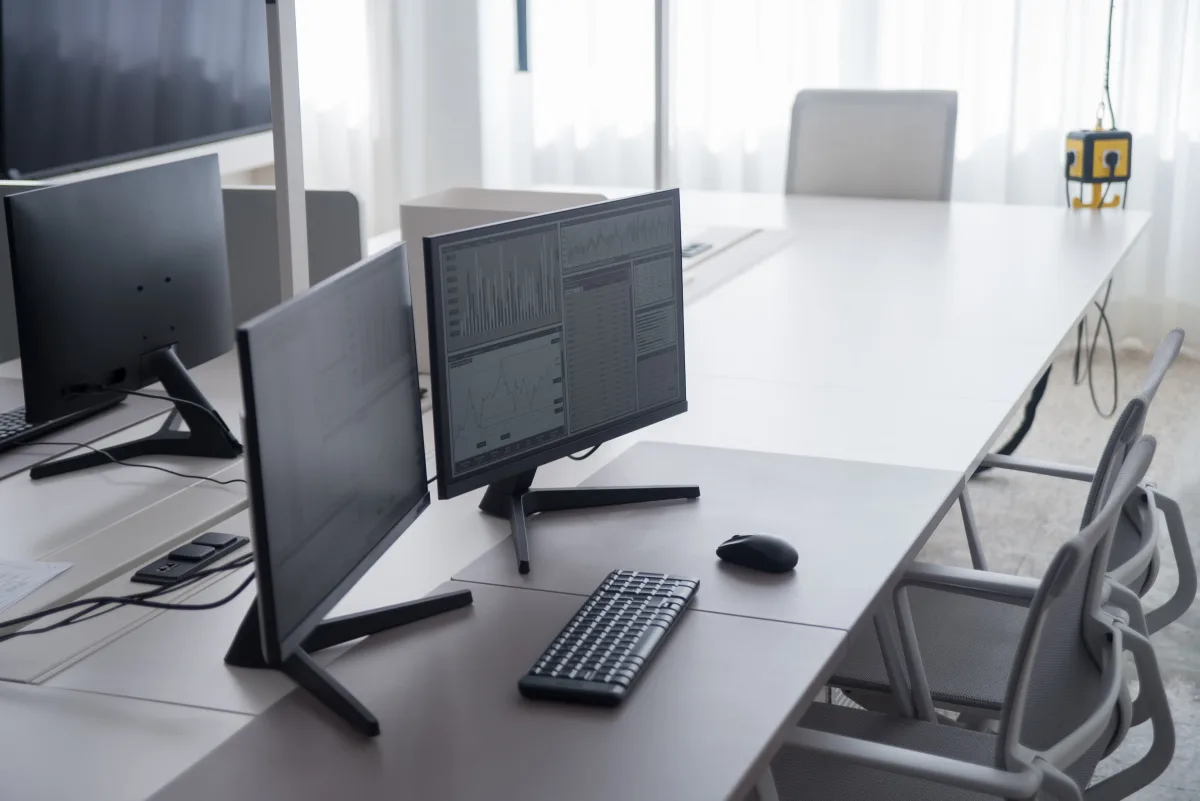
Color gamut coverage is the specification that separates a professional design monitor from everything else. For web design, look for verified coverage of at least 99% sRGB. For print work, DCI-P3 or Adobe RGB coverage is more relevant.
A monitor that claims wide color support without a factory calibration report is making a marketing claim, not a verified performance guarantee. Always verify that the unit you purchase ships with a calibration report — not just a spec sheet.
🎨 Top Pick: Dell Ultrasharp 32 4K QD-OLED (U3226Q)
This is the most significant new professional monitor announced at CES 2026. PCWorld's CES 2026 coverage confirms it uses a 31.5-inch 16:9 QD-OLED panel with 4K resolution and a refresh rate up to 120Hz.
What makes it stand out for creative professionals specifically:
- Integrated colorimeter — a hardware calibration tool built directly into the monitor. This means the Dell U3226Q can self-calibrate rather than requiring a separate calibration device (which typically costs $150–$300 separately).
- Thunderbolt 4 at 140 watts — enough to charge most professional laptops, alongside a 27-watt USB-C port, a 10-watt USB-A port, and 2.5Gbps Ethernet. That's a complete docking solution built into the monitor itself.
- Customizable direct keys and Dell's color management software for workflow-specific color space switching
For a laptop-based creative professional who also wants a clean desk setup, the Dell U3226Q is the most complete single-purchase solution available in 2026.
🖥️ Premium Alternative: Asus ProArt Display OLED PA32UCDM
Already listed under work monitors, this display earns a second mention here. Its OLED panel and ProArt color accuracy standards make it equally relevant for design work.
Dell U3226Q vs. Asus ProArt PA32UCDM for design work:
- OLED (ProArt) delivers marginally better black levels
- QD-OLED (Dell) delivers better color volume at high brightness
- The Dell's built-in colorimeter and Thunderbolt 4 hub are harder to replicate at the same price
- For most design workflows, both are excellent — the choice often comes down to which docking configuration fits your setup
💡 Budget Design Option: Well-Calibrated IPS
For designers who can't justify OLED pricing, a well-calibrated IPS panel with verified DCI-P3 coverage remains a professional-grade option. RTINGS.com maintains a dedicated graphic design monitor category updated continuously through 2026 — check there for current IPS recommendations at various price points. The key is verifying that your specific unit ships with a factory calibration report.
Connectivity and Ergonomics: The Two Categories Most Guides Skip
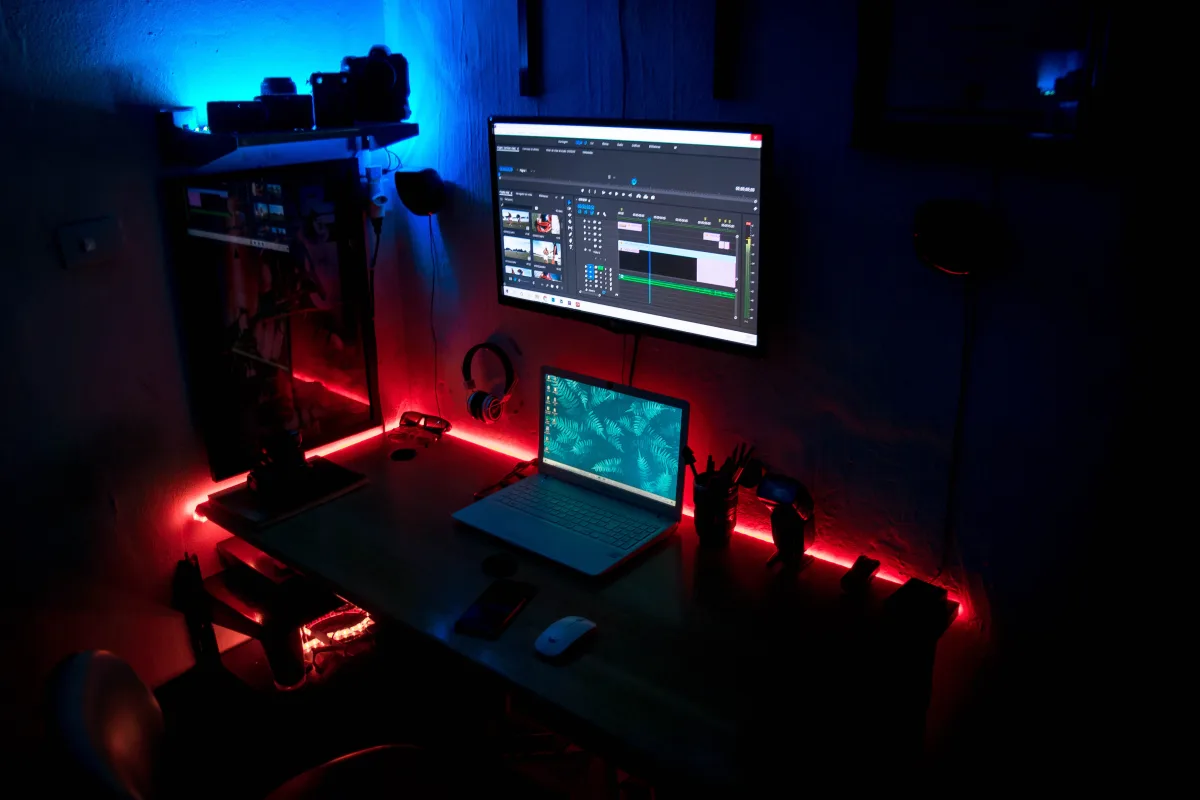
Two spec categories rarely get enough attention: connectivity and physical adjustability. Both affect daily usability more than most panel specs.
Connectivity in 2026
- USB-C with Power Delivery: A single cable that handles video input and laptop charging simultaneously. Look for at least 65W for ultrabooks; 90W or higher for larger laptops.
- Thunderbolt 4: Higher bandwidth than standard USB-C, with daisy-chaining capability. The Dell U3226Q's 140W Thunderbolt 4 port is the current benchmark.
- HDMI 2.0 vs. 2.1: HDMI 2.0 caps bandwidth in a way that limits 4K monitors to 60Hz. If you want 4K at 120Hz, you need DisplayPort 1.4 or HDMI 2.1. For work use at 60Hz, HDMI 2.0 is sufficient.
- Built-in USB hub: Saves desk space and reduces cable management complexity.
Ergonomics (More Important Than Most Specs)
For full-day work use, physical adjustability is not optional. A monitor that can't be raised to eye level forces a neck-down posture that causes cumulative strain over weeks and months.
At minimum, look for:
- Height adjustment of at least 100mm
- Tilt adjustment
- Swivel (left/right rotation)
- Pivot (rotation from landscape to portrait) — valuable for reading long documents, reviewing code, or working in vertical layouts. PCMag specifically flags pivot capability as a key feature of the Asus ProArt PA32UCDM.
If your preferred monitor lacks height adjustment, a monitor arm (typically $30–$80) solves the problem and improves desk organization at the same time.
What About Ultrawide Monitors?
Ultrawide displays (21:9 ratio, typically 34 inches) occupy a unique position: they're neither gaming-exclusive nor general-use compromises. For the right workflow, they're genuinely superior.
Ultrawide makes sense if you:
- Work on video or audio timelines — the wider canvas is a real workflow advantage
- Regularly work side-by-side in two applications without wanting a bezel in the middle
- Do slide deck or document layout work that benefits from horizontal space
Ultrawide is overkill if you:
- Primarily use full-screen applications
- Have a shallow desk (34-inch ultrawides need significant depth)
- Spend most of your day in a single application
Per Standesk's 2026 buying guide, a 34-inch ultrawide effectively replaces two monitors for timeline-based and layout work. The HP Series 7 Pro 34-inch listed above is a conferencing-focused example in this category.
If you're building out a broader productivity setup beyond your monitor, it's worth reading our 2026 guide to the best mechanical keyboards — a keyboard that matches your workflow matters as much as the screen you're looking at.
How PC Monitors Fit Into Your Broader Tech Setup
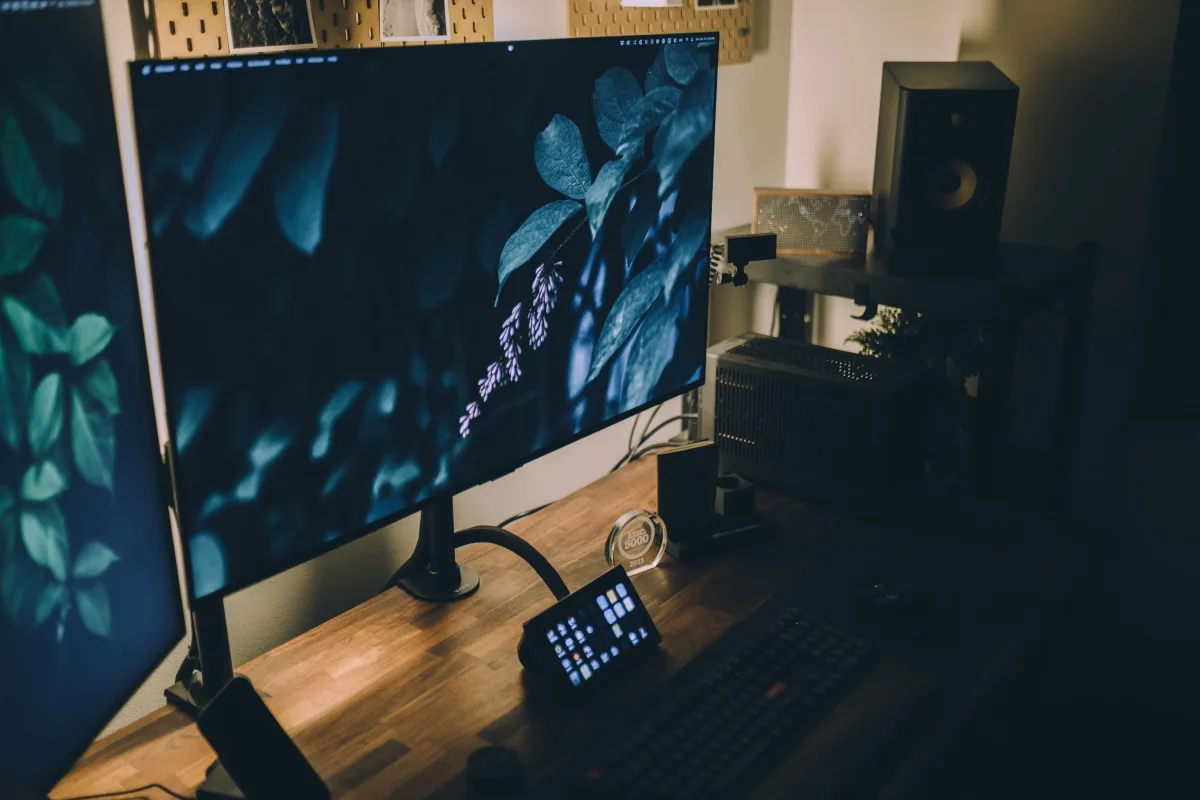
A monitor doesn't exist in isolation. Here's how it connects to other devices you might be evaluating:
- Laptops and tablets: If you're also shopping for a secondary screen to complement a tablet, see our Best Tablets 2026 guide — some tablets double as secondary displays.
- Video calls: A monitor with a built-in camera helps, but a dedicated external webcam gives you more control over framing and image quality. See our Best Webcams for Remote Work & Streaming 2026.
- Audio on your desk: If your setup involves headphones for focus work or calls, our Best Headphones 2026 guide covers the over-ear and noise-canceling options worth pairing with a productivity workstation.
- Storage for creative workflows: Design and video work fills up drives fast. Our Best External Hard Drives & SSDs 2026 guide covers the fastest options for creative storage.
- Portable power: If you frequently work away from your desk, our Best Portable Chargers & Power Banks 2026 covers what to carry alongside a laptop.
- Printing from your workstation: If your workflow includes printing — especially color proofing for design work — see our Best Home Printers 2026 guide.
For a complete framework on evaluating consumer electronics together — monitors, peripherals, and everything in between — The Complete Buyer's Guide to Consumer Electronics 2026 is a useful starting point.
Frequently Asked Questions
Is 1080p still acceptable for work in 2026?
At 24 inches or smaller, yes. Per Standesk's 2026 buying guide, 1080p is suitable for monitors up to 24 inches. At 27 inches or larger, text sharpness degrades noticeably — you'll likely notice it within the first week of daily use. If your budget only stretches to a 27-inch 1080p monitor, a 24-inch 1080p panel will look sharper and cost less.
Do I need an OLED monitor for design work?
Not necessarily. OLED delivers exceptional contrast and color, but a well-calibrated IPS panel with verified DCI-P3 coverage is a professional-grade tool for most design workflows. OLED becomes worth the premium when you need the absolute best black levels and color volume, or when you're working on HDR video content. For web design and print-focused work, a quality IPS panel with a factory calibration report is sufficient and significantly less expensive.
What is the difference between QD-OLED and regular OLED for work?
QD-OLED adds a quantum dot layer that improves color volume — particularly the brightness of saturated colors. Standard OLED can appear slightly dimmer in very bright, saturated colors. For most work and design tasks, the difference is subtle. The more meaningful distinction in 2026 is that QD-OLED monitors like the Dell Ultrasharp 32 4K QD-OLED are being designed specifically for professional use, with features like integrated colorimeters that standard OLED monitors don't include.
How important is refresh rate for non-gaming use?
For office and creative work, 60Hz is sufficient. 75Hz or higher is a marginal comfort improvement for some users but not a functional necessity. You'll see no measurable benefit from 144Hz or higher refresh rates in document work, design software, or video editing — those high refresh rates are for gaming frame rates. Spending extra for a high-refresh-rate panel on a productivity workstation is money better directed toward color accuracy or screen size.
What's the best monitor for a home office under $400?
At 27 inches and 1440p, IPS panels in the $250–$400 range offer the best value for productivity work in 2026. Brands worth looking at in this tier include LG, Dell (the U2722D is a frequently recommended model), and BenQ's GW-series lineup. Prioritize height adjustment and USB-C connectivity — these are the features most often missing from budget panels that you'll notice on day one.
Should I get one large monitor or two smaller ones?
One large monitor wins on cable management and desk simplicity; two monitors win on flexibility for side-by-side workflows where you need persistent context on both screens. A 34-inch ultrawide is a middle path: wider than a single 27-inch, without the bezel gap of a dual-monitor setup. For most knowledge workers, a single well-chosen 27-inch or 32-inch display is easier to configure and equally productive.
Bottom Line: Which Monitor Is Right for You?
Here's the use-case summary before you close this tab:
- Pure office and remote work: 27-inch 1440p IPS with USB-C and height adjustment. BenQ GW2486TC for budget; look at the LG 27UN850 or Dell U2722D in the $350–$450 range for the daily driver sweet spot.
- Graphic design and photo editing: Dell Ultrasharp 32 4K QD-OLED (U3226Q) if budget allows — the integrated colorimeter alone justifies the premium. IPS with factory calibration and DCI-P3 coverage for the mid-range.
- Video and audio editing: 34-inch ultrawide IPS or a 32-inch 4K IPS for timeline-based workflows.
- General home use: 27-inch 1440p IPS, any reputable brand with good reviews. Don't pay for OLED unless you're doing creative work.
- Budget: 24-inch 1080p IPS. The BenQ GW2486TC is PCMag's tested pick in this tier.
And if you're also evaluating cameras for a creative hobby alongside your monitor upgrade, see our Best Photography Equipment for Hobbyists 2026 — color-accurate display work and photography often go hand in hand.
This article was researched and drafted with AI assistance, then reviewed and fact-checked by a human editor before publishing. Our recommendations are research-based: we aggregate manufacturer specifications, independent test data from sources including PCMag and RTINGS.com, and verified buyer reviews. We do not claim hands-on testing by Trusted Buyer Report. Affiliate commissions may be earned from purchases made through links on this page and are applied only after editorial assessment is complete. Full methodology → | Affiliate disclosure →